
Password Flow
🎯 Purpose
The Password Flow is the primary web activation method that allows users to establish password-based authentication combined with a second authentication factor. This flow creates a complete web-based authentication profile for users.
🔄 Step-by-Step Process
🎫 Step 1: Token Generation and Distribution
- Enterprise Action: Client/enterprise generates Proof of Authorization token
- Token Characteristics: Single-use, time-limited authorization credential
- Distribution Method: Token sent to user via activation link
- Link Format:
https://auth.relid.com:8006/relid/authserver/register?token={token_value}
🌐 Step 2: Activation Page Access
- User Action: User clicks activation link to access Ditto ID Web Activation page
- Page Loading: System validates token and presents activation interface
- Screen Selection: User sees "Set Up Password" screen or Passwordless activation options
- Configuration Dependency: Screen type depends on system configuration settings
🔒 Step 3: Password Creation
- Password Entry: User creates password meeting system policy requirements
- Confirmation: Password must be entered twice for verification
- Policy Validation: System checks password against complexity rules
- Storage: Password securely hashed and stored upon validation
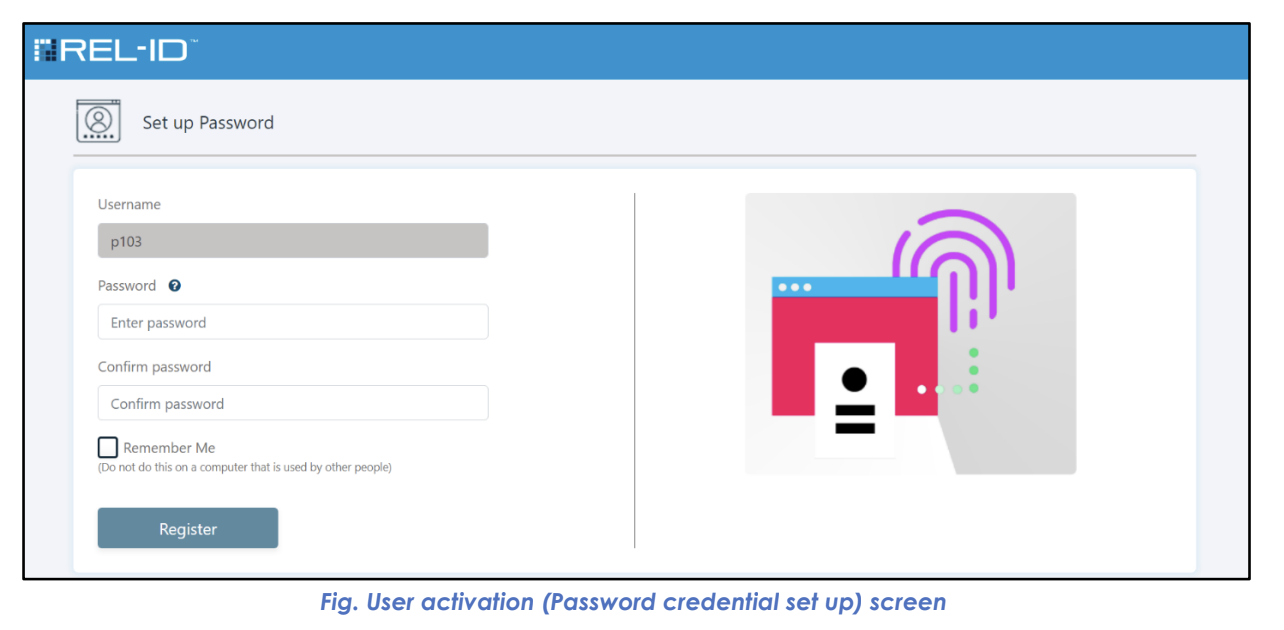
Password Setup Screen Features:
- Clear password policy requirements display
- Real-time password strength indication
- Confirmation field to prevent typing errors
- Policy compliance validation messages
🌐 Step 4: Browser Remembering Option
- Remember Me Checkbox: Available if
rememberMeconfiguration enabled - User Choice: Optional selection to trust current browser
- Functionality: Enables Account Chooser for future logins
- Duration: Browser remembered for configured period (default: 1 year)
- Security Trade-off: Convenience vs. security consideration
🔐 Step 5: Second Factor Selection
- 2-Step Verification Screen: System presents available second factor options
- Available Options: Based on system configuration settings
- User Choice: User selects preferred second authentication factor
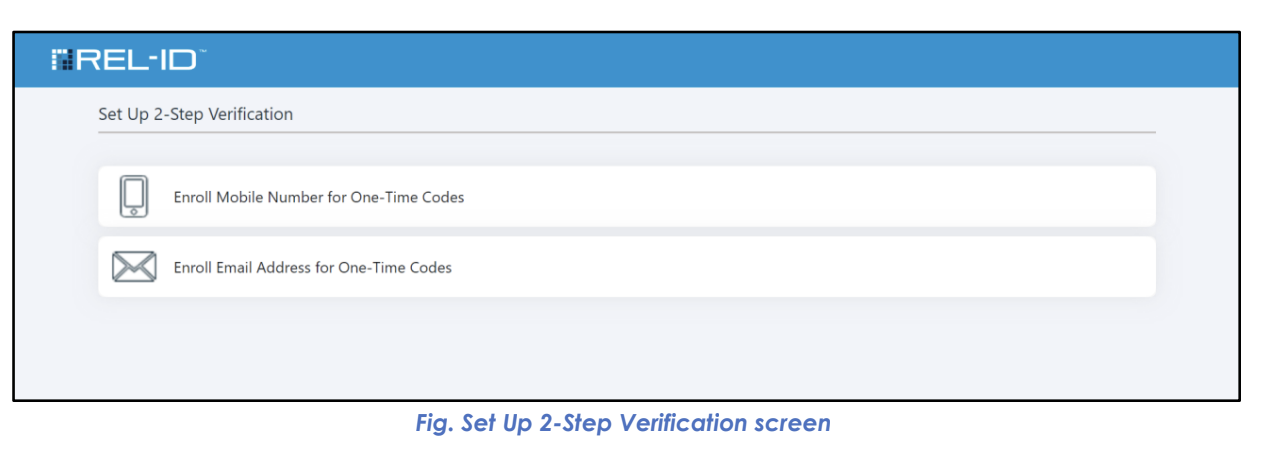
Available Second Factor Options:
| Option | Description | Requirements |
|---|---|---|
| 📲 SMS OTP | Mobile number for text message codes | Valid mobile phone number |
| 📧 Email OTP | Email address for verification codes | Valid email address |
📲 Step 6A: SMS OTP Registration (if selected)
- Number Entry: User provides mobile phone number
- Format Validation: System checks number format and validity
- Test SMS: Verification code sent to provided number
- Code Entry: User enters received code to confirm number ownership
- Registration: Mobile number stored for future authentication use
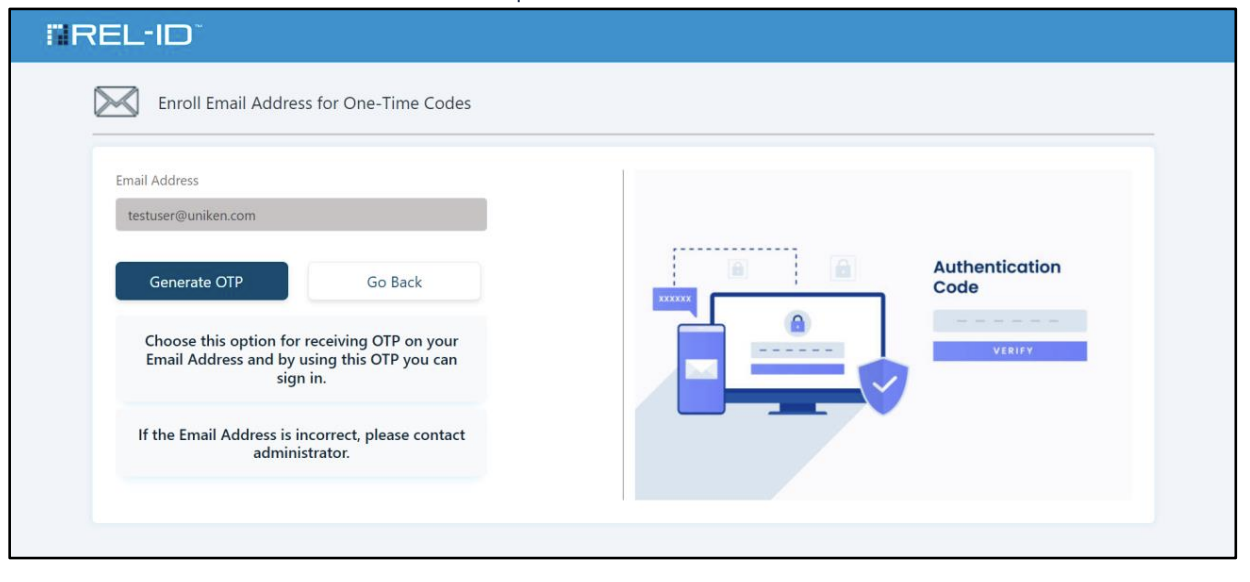
📧 Step 6B: Email OTP Registration (if selected)
- Email Entry: User provides email address
- Format Validation: System checks email format and domain validity
- Test Email: Verification code sent to provided email address
- Code Entry: User enters received code to confirm email ownership
- Registration: Email address stored for future authentication use
✅ Step 7: Activation Completion
- Validation: System confirms all required factors are properly configured
- Success Confirmation: User receives activation success notification
- Redirect: User redirected to configured redirect URI
- Immediate Availability: Credentials ready for authentication immediately
For example, the user chooses to set up an Email Address and the Enroll Email Address for One-Time Codes screen is presented to the user as shown below.
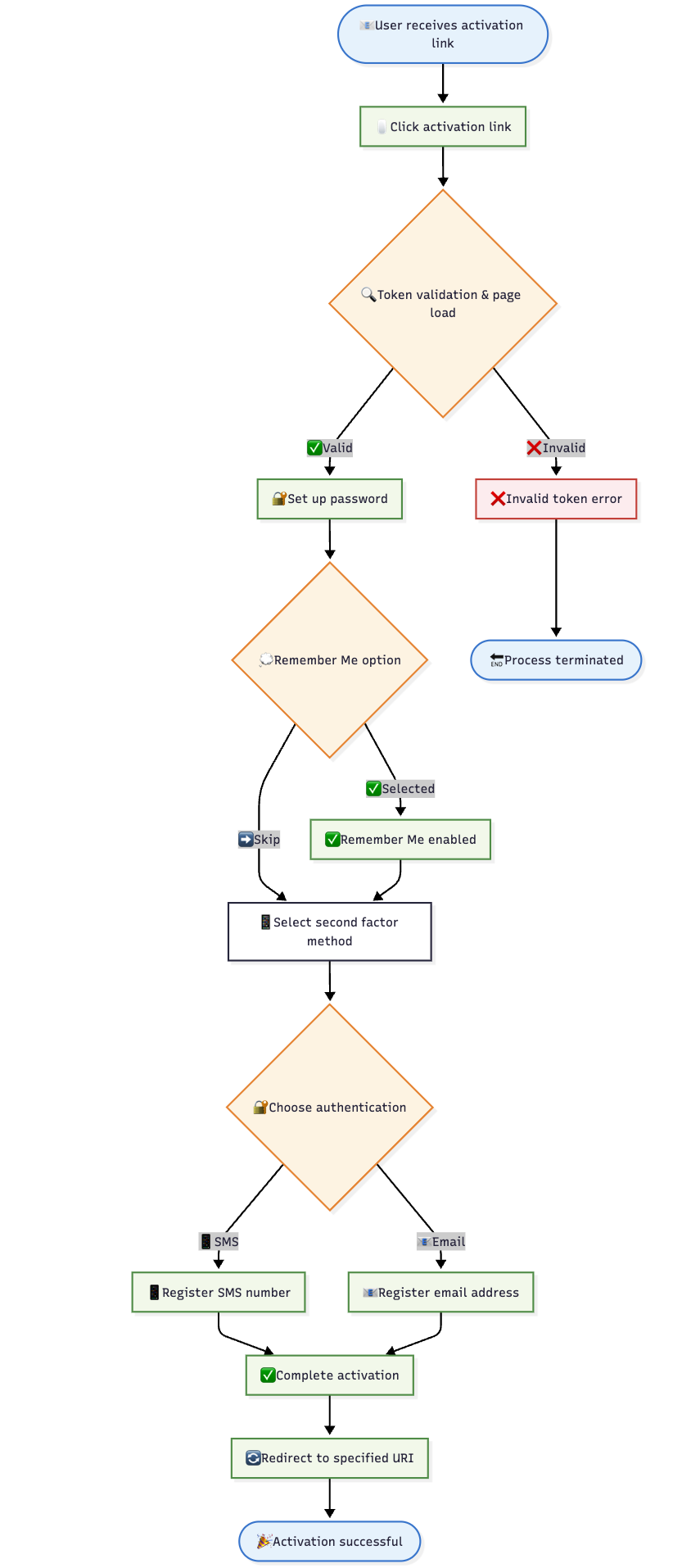
📊 Flow Diagram
🎯 User Experience Considerations
✅ Success Indicators
- Clear Progress: Users understand current step and next actions
- Immediate Feedback: Real-time validation and confirmation messages
- Success Confirmation: Clear indication when activation completes
- Next Steps: Guidance on how to use newly created credentials
🛡️ Security Features
- Token Validation: Single-use tokens prevent replay attacks
- Password Policies: Enforced complexity requirements
- Factor Verification: All factors verified before activation completes
- Secure Storage: Credentials properly hashed and encrypted
📱 Cross-Platform Compatibility
- Web Authentication: Password immediately available for web login
- Mobile App Support: Password can be used for Ditto ID mobile app (if configured)
- Consistent Experience: Same credentials work across platforms
- Policy Alignment: Password policies consistent across web and mobile
Updated 4 months ago