
Sign In Options
🎯 Purpose
The Sign In Options screen serves as the central hub for users to view and manage their available authentication methods. It provides a comprehensive overview of all configured authentication factors and enables users to modify their security settings.
📍 Access Path
- Complete full MFA authentication
- Click "Manage your Account Security Preferences" link
- Automatically directed to Sign In Options screen
🖥️ Interface Overview
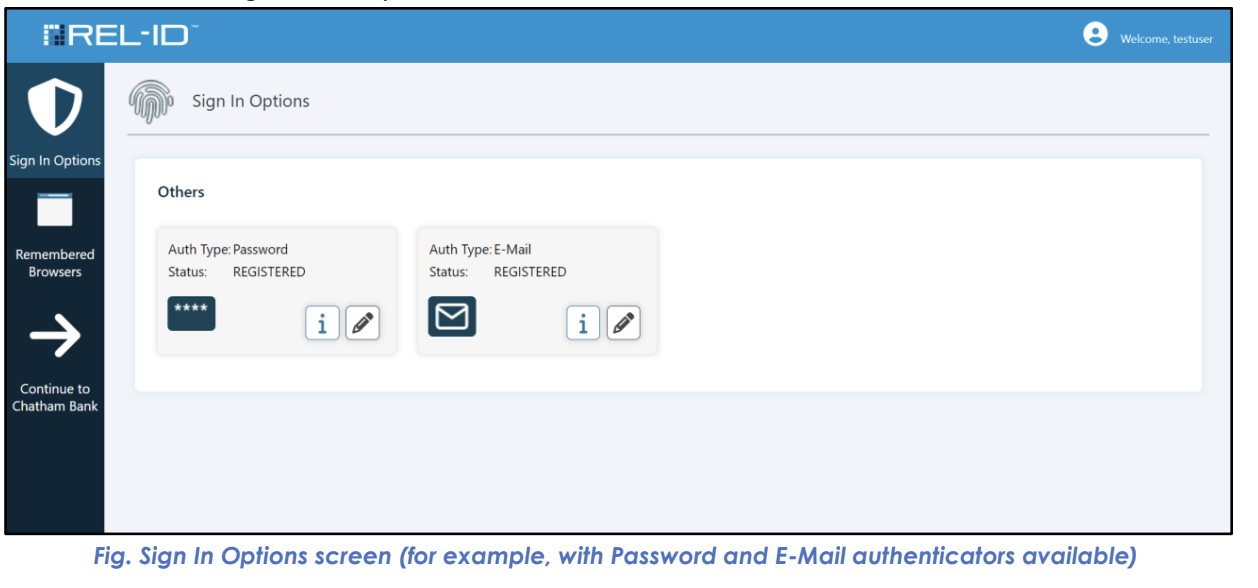
The Sign In Options screen displays all authentication methods available to the user, organized by category and type. Each method shows its current configuration status and available actions.
📊 Displayed Authentication Methods
🏢 Enterprise-Grade Factors (Ditto ID Mobile App)
| Factor | Display Name | User Control | Description |
|---|---|---|---|
| 🔔 Push Notification | Ditto IDVerify Push | View Only | Mobile app push notifications |
| 📱 Authentication Code | Authentication Code in App | View Only | Time-based OTP from mobile app |
🌐 Web-Based Factors (User Configurable)
| Factor | Display Name | User Control | Description |
|---|---|---|---|
| 🔒 Password | Password | ✅ Update Available | User-defined password |
| 📧 Email OTP | ✅ Update Available | One-time codes via email | |
| 📲 SMS OTP | SMS | ✅ Update Available | One-time codes via text message |
🎨 Visual Interface Elements
📱 Factor Display Cards
Each authentication factor is presented as a distinct card showing:
- Factor Icon: Visual identifier for the authentication method
- Factor Name: Clear, descriptive name
- Current Status: Whether factor is active and configured
- Action Buttons: Available user actions (view, edit, update)
- Configuration Details: Current settings (masked for security)
🔧 Action Button States
| Button State | Appearance | User Capability | Trigger Condition |
|---|---|---|---|
| Disabled (Grayed Out) | Non-clickable, muted | View only | Initial page load |
| Enabled (Active) | Clickable, normal colors | Full functionality | After re-authentication |
🔒 Security Model
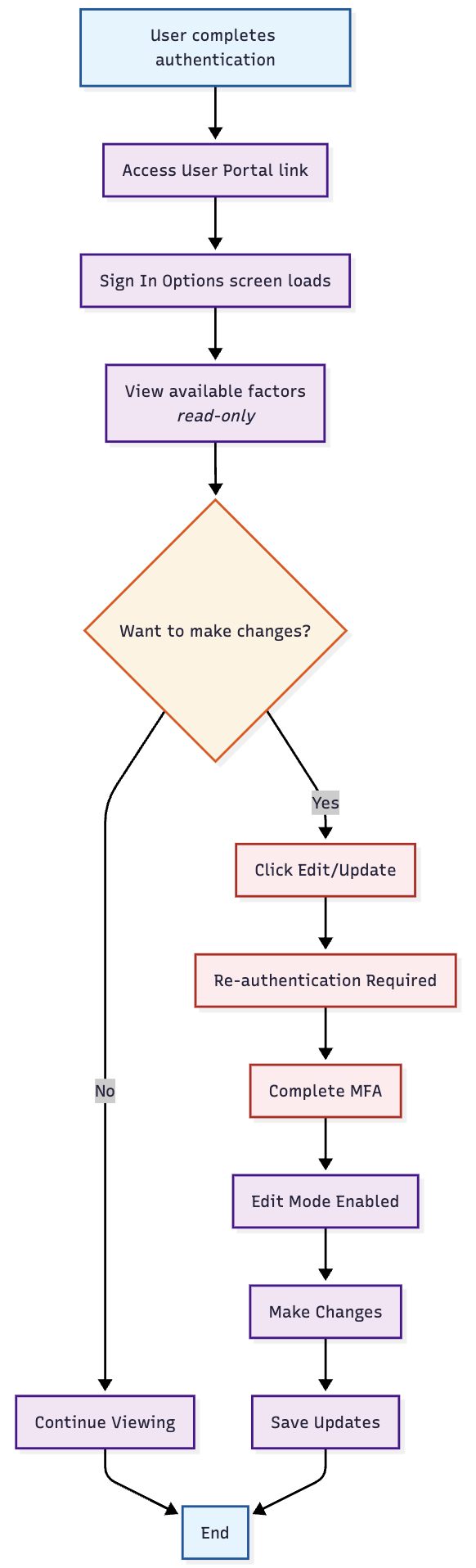
- View-Only Initial State: All editing capabilities disabled by default
- Re-authentication Required: Users must authenticate again to make changes
- Session-Based Permissions: Edit capabilities granted for entire session after re-auth
- Automatic Timeout: Edit permissions expire after inactivity
🎯 User Interaction Flow
Updated 4 months ago