
Update Password
🎯 Purpose
Enables users to change their authentication password through a secure, self-service process. This functionality ensures users can maintain password security and compliance with organizational policies.
📍 Access Requirements
- Edit Mode Active: Re-authentication must be completed
- Password Factor Present: User must have password authentication configured
- Update Button Available: Password factor must show update capability
🔄 Password Update Process
🎯 Initiation
- Location: Password authenticator in "Others" section of Sign In Options
- Action Button: Click update/edit button (📝) for Password auth type
- Visual Indicator: Button only clickable after re-authentication
- User Context: Clear indication this will change login password
🖥️ Update Password Screen
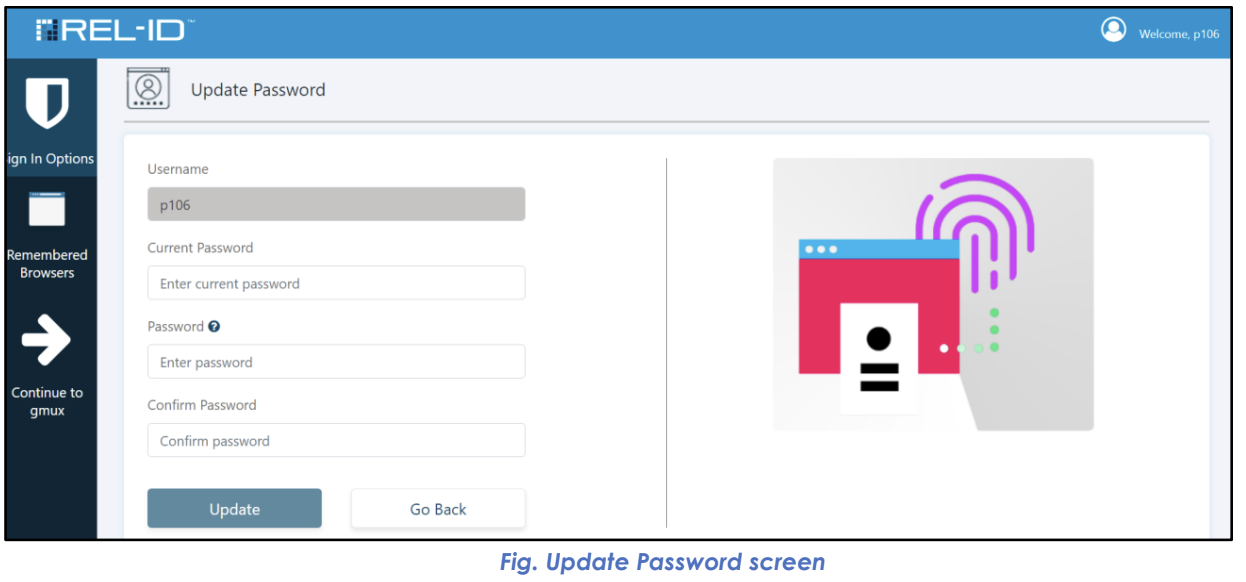
- Screen Title: "Update Password" prominently displayed
- Input Fields: New password entry with confirmation field
- Policy Display: Password requirements clearly shown
- Validation: Real-time password strength and policy compliance checking
📊 Password Update Interface Elements
| Element | Purpose | User Experience |
|---|---|---|
| Current Password | Security verification | May be required for validation |
| New Password Field | Primary input | Clear labeling and policy hints |
| Confirm Password | Error prevention | Must match new password exactly |
| Policy Requirements | Guidance | Clear list of password rules |
| Strength Indicator | Feedback | Visual indication of password strength |
| Update Button | Action trigger | Processes password change |
🔐 Password Policy Enforcement
📋 Validation Requirements
- Length: Minimum/maximum character requirements
- Complexity: Uppercase, lowercase, numbers, special characters
- History: Prevention of recently used passwords
- Dictionary: Prevention of common/weak passwords
- Custom Rules: Organization-specific requirements
⚡ Real-Time Validation
- Immediate Feedback: Password strength shown as user types
- Policy Compliance: Red/green indicators for each requirement
- Error Prevention: Submit button disabled until all requirements met
- User Guidance: Clear messaging about what needs to be fixed
✅ Success Flow
🎉 Successful Password Update
- Validation: New password meets all policy requirements
- Processing: System securely hashes and stores new password
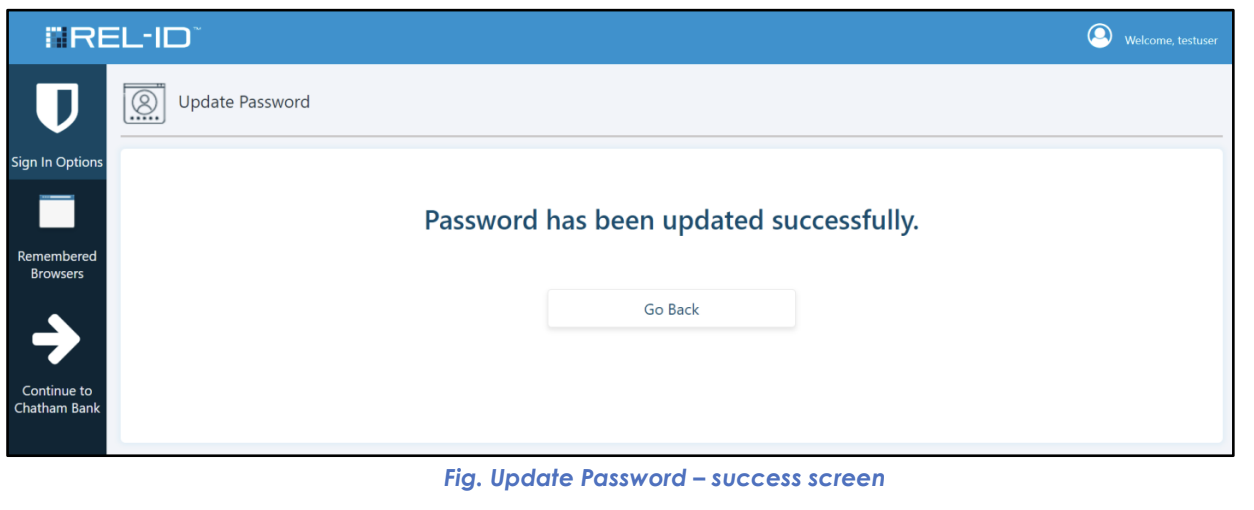
- Success Screen: "Update Password – success screen" displayed
- Confirmation: Clear message that password has been changed
- Immediate Effect: New password active for next authentication
📱 Success Screen Elements
- Success Icon: Visual confirmation of successful change
- Success Message: "Your password has been successfully updated"
- Next Steps: Guidance on using new password
- Return Option: Link back to Sign In Options screen
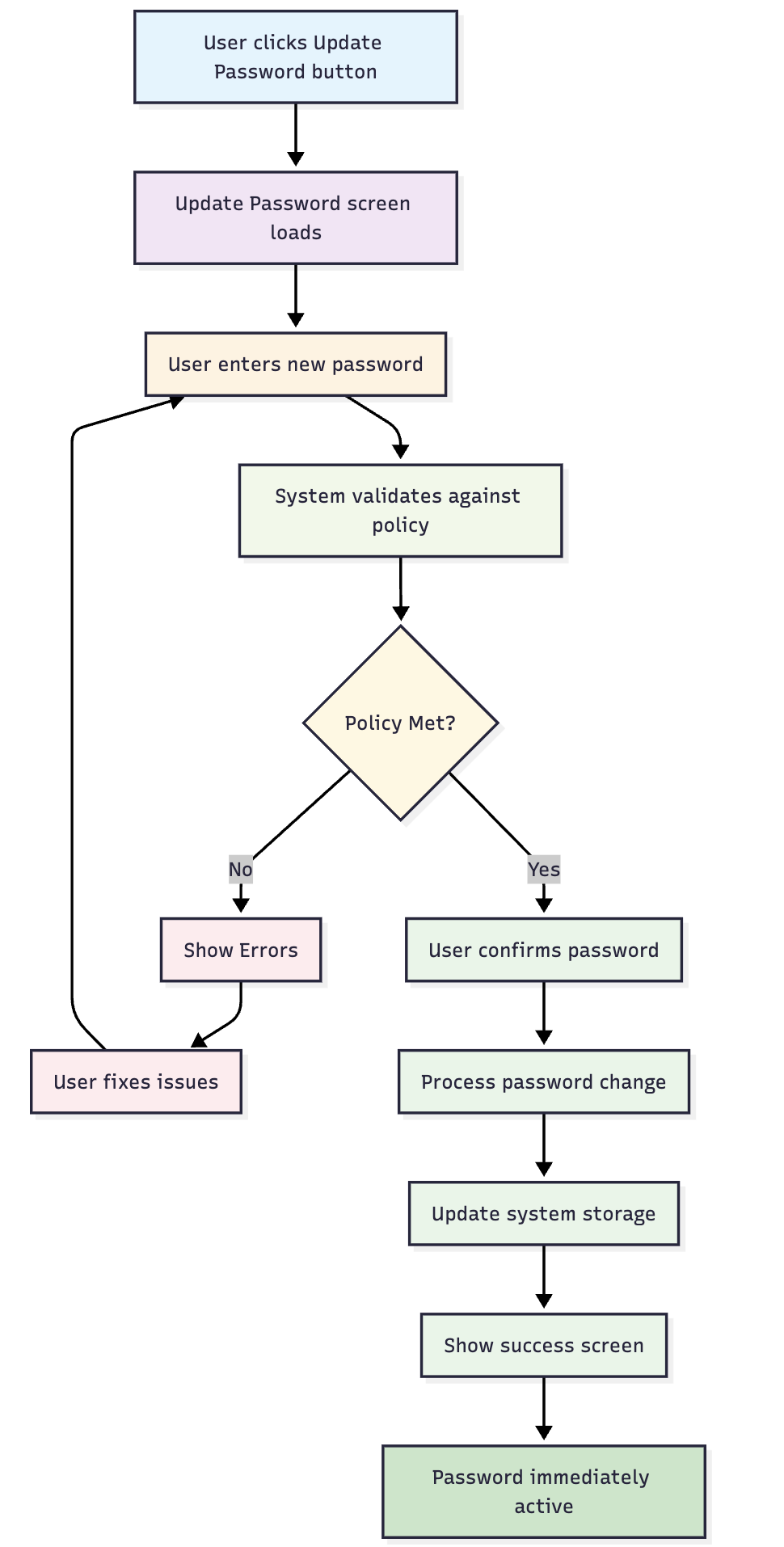
🔄 Password Update Flow Diagram
🎯 User Experience Considerations
🛡️ Security Features
- Secure Input: Password fields properly masked
- Policy Transparency: Clear requirements before user starts
- Immediate Validation: Real-time feedback prevents submission errors
- Secure Processing: Password properly hashed and stored
✅ User-Friendly Elements
- Clear Interface: Intuitive form design and layout
- Helpful Guidance: Policy requirements clearly explained
- Error Prevention: Validation prevents common mistakes
- Success Confirmation: Clear indication when change completes
⚠️ Important Considerations
🔄 Cross-Platform Impact
- Web Authentication: New password immediately active for web login
- Mobile App: Password may also work for Ditto ID mobile app (if configured)
- Consistency: Same password used across all configured platforms
- Immediate Effect: No delay in password activation
🚨 Security Implications
- Session Security: Password change doesn't automatically terminate current session
- Other Sessions: May or may not affect other active sessions (configurable)
- Audit Trail: Password changes logged for security monitoring
- Recovery: Old password immediately invalidated after successful change
Updated 4 months ago