
Remembered Browsers
🎯 Overview
The Remembered Browsers feature provides users with comprehensive visibility and control over browsers that have been marked as trusted through the "Remember Me" functionality. This self-service capability enhances security by allowing users to monitor and manage device access to their accounts.
🔑 Access Path
- Complete full MFA authentication
- Access User Portal via "Manage your Account Security Preferences" link
- Navigate to "Remembered Browsers" section from portal menu
- View and manage trusted browser list
🏗️ Browser Trust System
🌐 How Browsers Become "Remembered"
- User Selection: User selects "Remember Me" checkbox during authentication
- Trust Establishment: Browser receives secure cookie marking it as trusted
- Duration: Trust maintained for configured period (default: 1 year)
- Scope: Trust applies to specific browser on specific device
🔒 Security Model
- Device-Specific: Each browser-device combination tracked separately
- Secure Tokens: Cryptographically secure identification tokens
- Expiration: Automatic expiry based on configured duration
- User Control: Users can revoke trust at any time
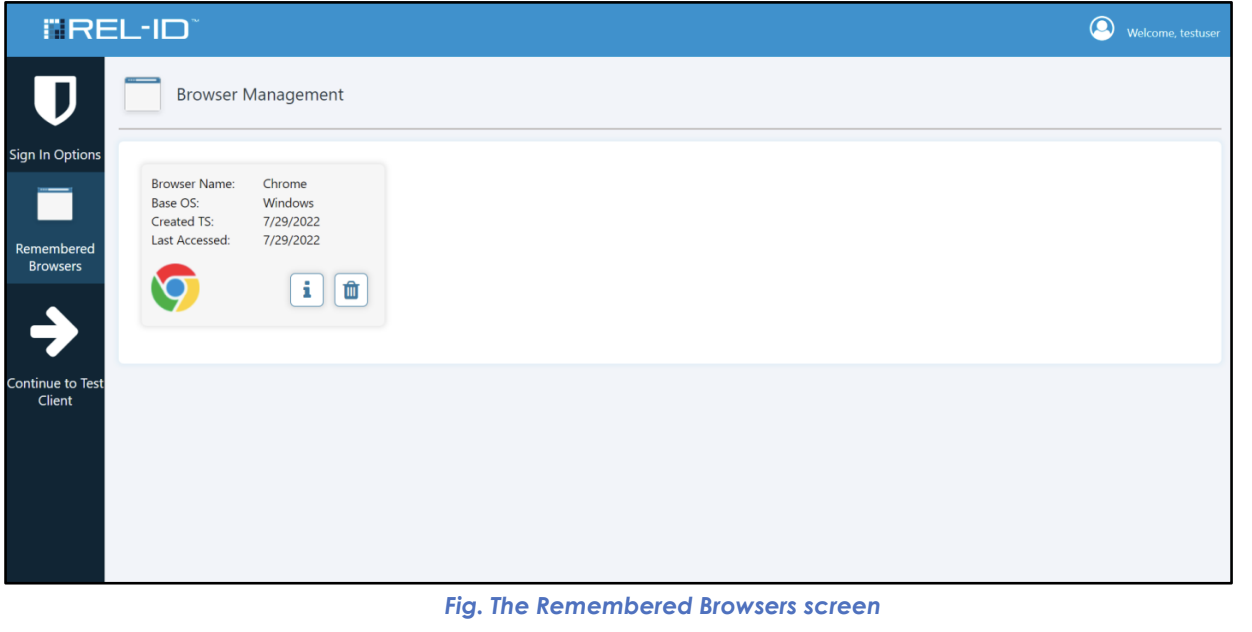
🖥️ Remembered Browsers Screen Overview
📊 Browser Information Display
The Remembered Browsers screen presents a comprehensive view of all trusted browsers, organized for easy identification and management.
📋 Displayed Browser Information
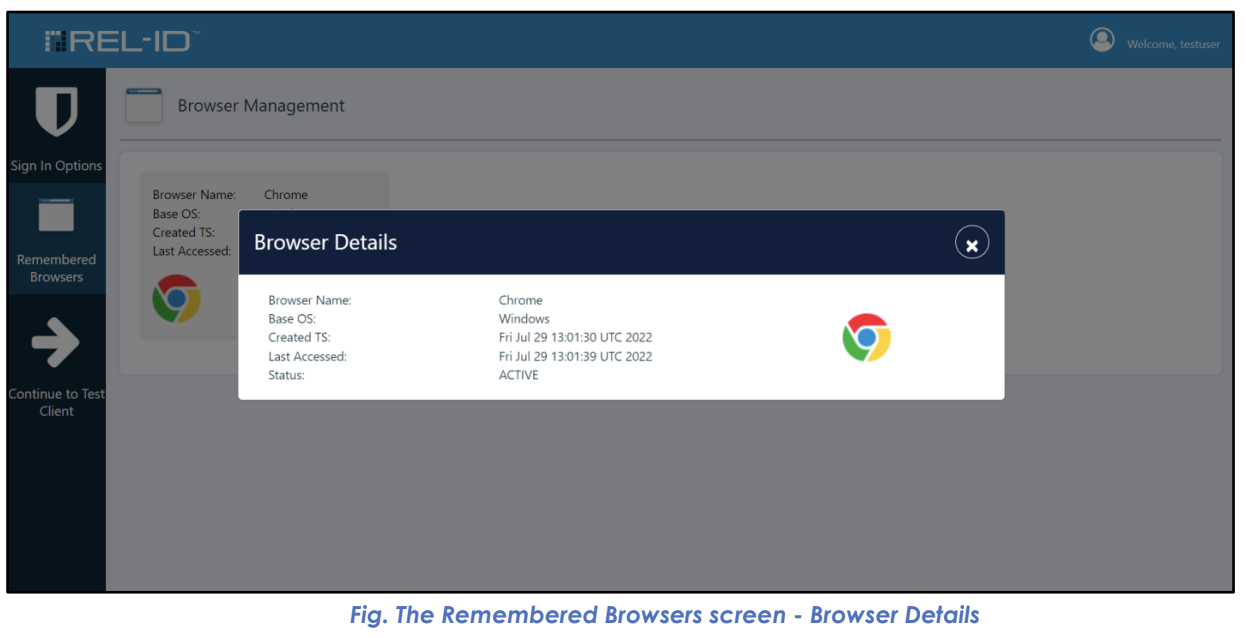
| Information Category | Details Shown | Purpose |
|---|---|---|
| 🌐 Browser Name | Chrome, Firefox, Safari, Edge | Quick browser identification |
| 💻 Operating System | Windows, macOS, Linux, iOS, Android | Device platform identification |
| 📅 Creation Date | When browser was first remembered | Trust establishment timeline |
| 🕐 Last Access Date | Most recent login using this browser | Activity monitoring |
| 🖼️ Browser Icon | Visual identifier for supported browsers | Enhanced visual recognition |
📊 Information Display Characteristics
- Clear Identification: Each browser clearly distinguishable
- Comprehensive Details: All relevant information at a glance
- Visual Enhancement: Icons improve user recognition
- Activity Tracking: Last access time shows recent usage
🎨 Visual Organization and Layout
📱 Browser Card Layout
Each remembered browser is displayed as an individual card containing:
- Browser Icon: Visual identifier (Chrome, Firefox, Safari, Edge icons)
- Browser Name: Clear text identification
- Operating System: Platform information
- Date Information: Creation and last access dates
- Action Buttons: Information and delete controls
🔄 Browser Sorting and Organization
- Primary Sort: Most recently accessed to least recently accessed
- Layout Direction: Left to right arrangement
- Visual Priority: Most active browsers prominently positioned
- Easy Scanning: Logical organization for quick browser identification
📊 Browser Display Example

🎯 User Benefits
🔍 Security Monitoring
- Device Awareness: Users can see all devices with account access
- Activity Tracking: Monitor when and where account was accessed
- Unauthorized Access Detection: Identify unfamiliar browsers or locations
- Trust Management: Remove access from compromised or unused devices
⚙️ Account Hygiene
- Regular Cleanup: Remove old or unused browser trust
- Access Control: Maintain tight control over account access points
- Security Best Practices: Encourage regular review of trusted devices
- Convenience Balance: Maintain convenience while ensuring security
Updated 4 months ago